Skip to Main Content

Redefining Convenience with our SC Mobile Banking


With the new Standard Chartered Mobile Application, get unified access to all your banking needs in a more secured and seamless manner.


Introducing the new Standard Chartered Mobile application

Your Security is our Priority


Secure your account with encryption, multi-factor authentication and real-time monitoring.
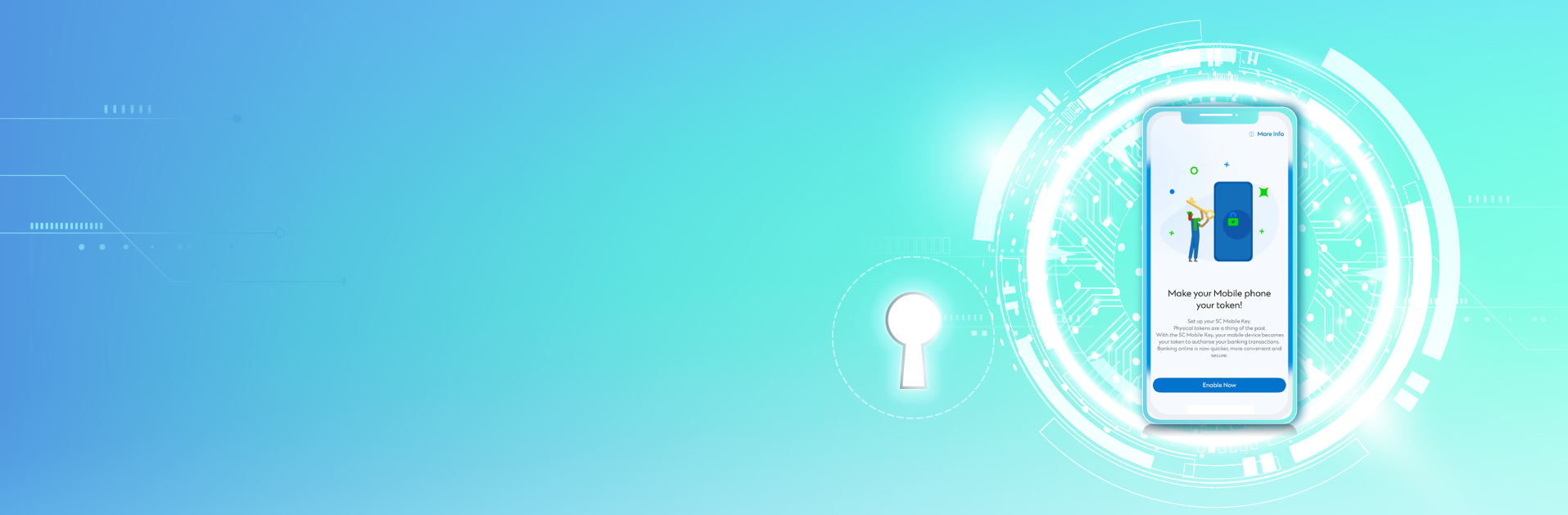
Activate SC Mobile Key for safe and seamless access.

Other features of SC Mobile App

SC Mobile App

Yes, the new SC Mobile App version is available for both Android and iOS devices. You can simply download the app from the Google Play Store or App Store.

No, you can simply go to the app store on your mobile device’s operating system to update your SC Mobile App. You can then use the new version of the SC Mobile app. Your username/password/SC Mobile Key/Face ID/Touch ID will remain unchanged. You do not have to register for the app again or reset your SC Mobile Key.

You can use your existing online banking username and password to log in. If you don’t have an online banking Username and password and using the app for the first time you will receive an option as.No Login Credentials click on that and register for online/mobile banking by using Instant Registration by clicking on the ‘Register with temporary ID and Password’. Please ensure your mobile number is registered with us to receive an SMS with your temporary password.

Step 1 – Tap the face/finger icon on the login screen of the SC Mobile app and select “Enable Now".


Step 2 – Enable Face ID/Touch ID with your SC Mobile App username and password. Read carefully and accept the Terms and Conditions.
 

Step 3 – Complete by enabling the function to start logging in with your Face ID/Touch ID

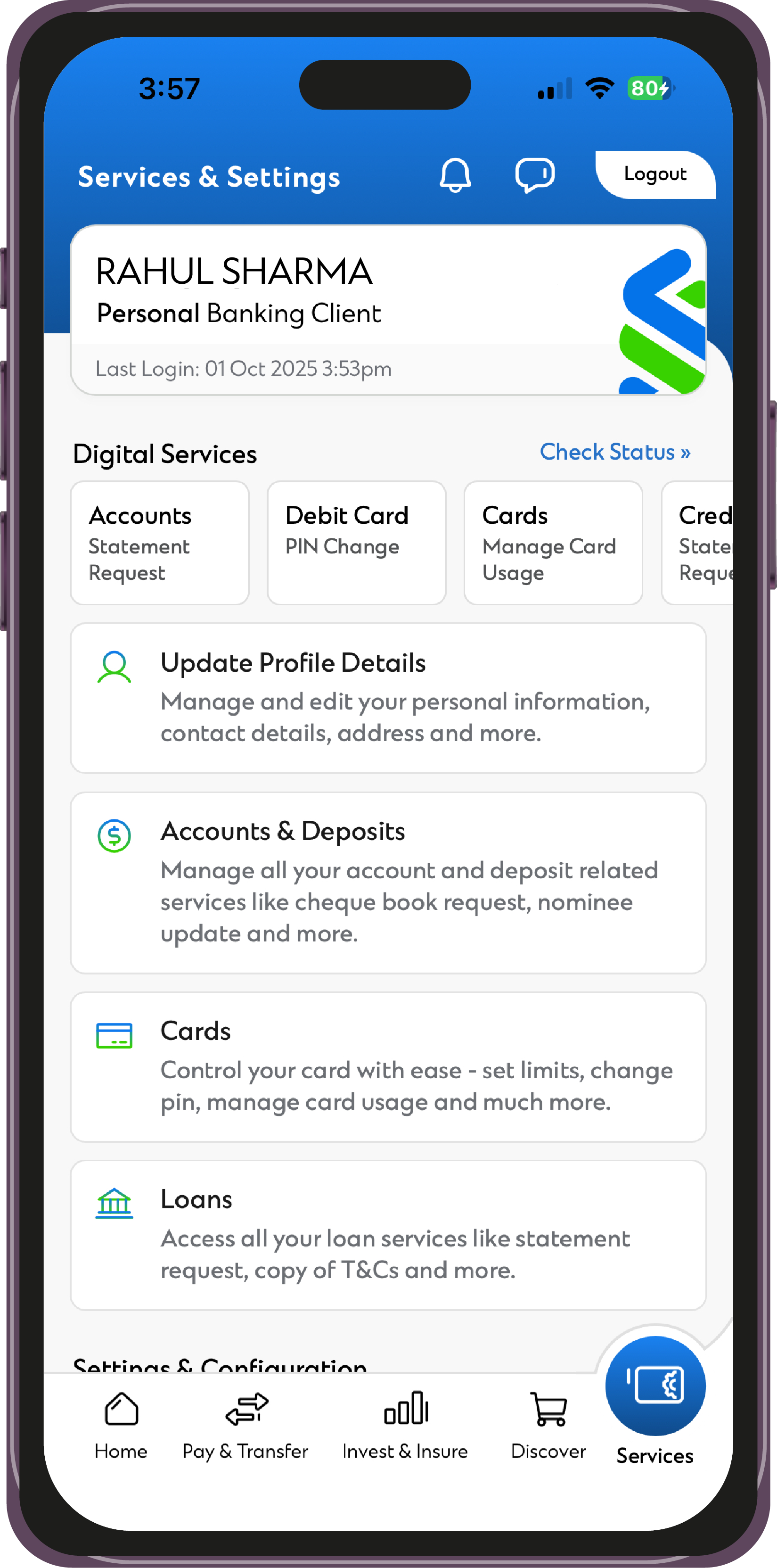
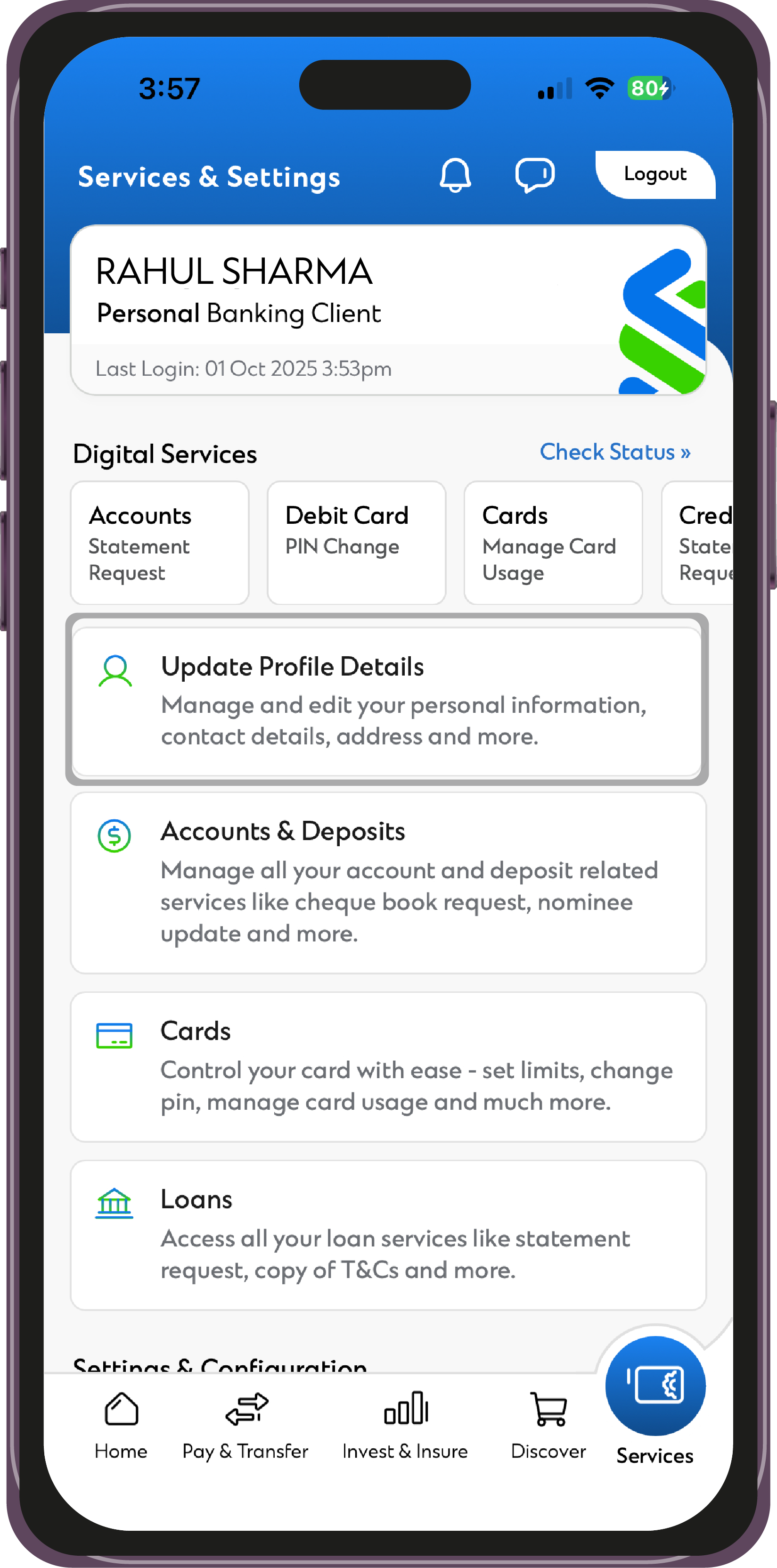
  1. Click on the Services tab located at the bottom right corner.
  2. Select ‘About’.
  3. Your current app version will be displayed at the bottom of the screen.

SC Mobile App helps you to perform banking operations at the tip of your fingers, 24X7 safely and conveniently. It is extremely easy to use, and you can manage your account easily wherever you are. It saves you time as you no longer need to visit the branch or contact Phone Banking for basic banking services.

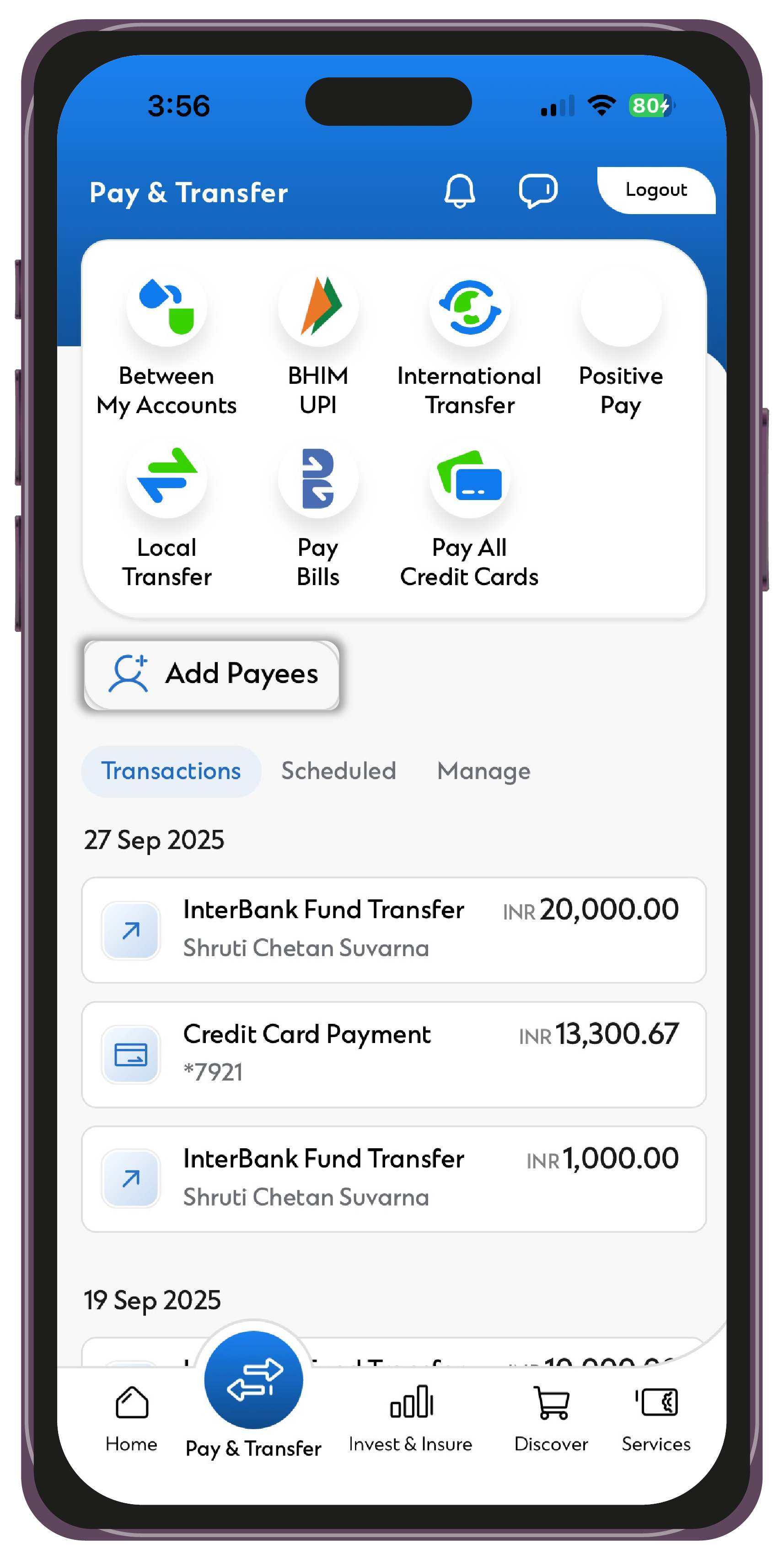
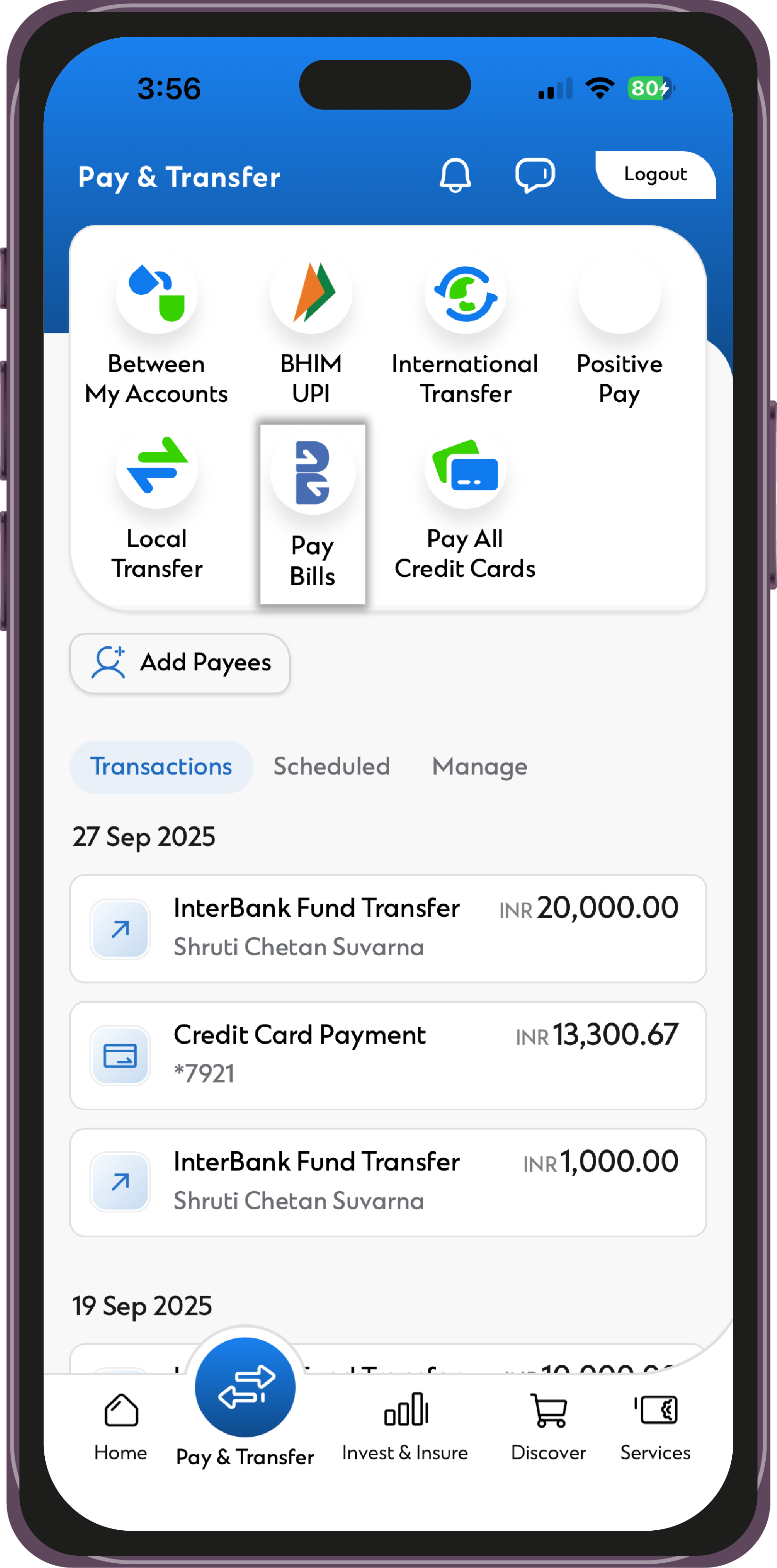
From providing safe and instant ways to login like Touch/Face ID to a host of pre and post login capabilities, the list of features is endless. Some key features of SC Mobile that we think would be very useful to you are: View your account/card balances. Transfer funds using various modes – UPI/IMPS/NEFT/RTGS. Manage and service your account – Change/Set your card PINs, change profile data, etc. Pay bills. You can also pay utility bills, credit card bills and schedule transfers.

Our redesigned user interface is designed to support the modern design and ensure the security of your account. These features are no longer available on the new SC Mobile app.

The Standard Chartered Mobile Application is supported on wide variety of latest phones ranging from iPhones with iOS 14 and above and smartphones with Android 10 and above.

If you hold any (or a combination) of the following products from Standard Chartered, you can register for SC Mobile for free:

Savings Account

Current Account

Deposit Account

Loan Account

Credit Card.

Safeguard your Password. Never reveal your Password to anyone, including the staff of Standard Chartered Bank. Standard Chartered Bank will never ask you for confidential information like OTP/PIN/Password through emails, SMS, phone calls or in person. Beware of anyone asking you for such details. Do not use easy to guess numbers as your Password, such as 111111, 123456, your date of birth, etc.


Change your Password regularly (once in 3 months). Just click “Change Password” and follow the simple instructions when you enter your ID and Password during login, please ensure that others cannot see your screen and also you are not being observed from behind. If you suspect that your password has been stolen or exposed to others, please reach out to us. Always log out when you finish using the service.

To ensure security and safety to your account, only one device can be registered with the SC Mobile App.

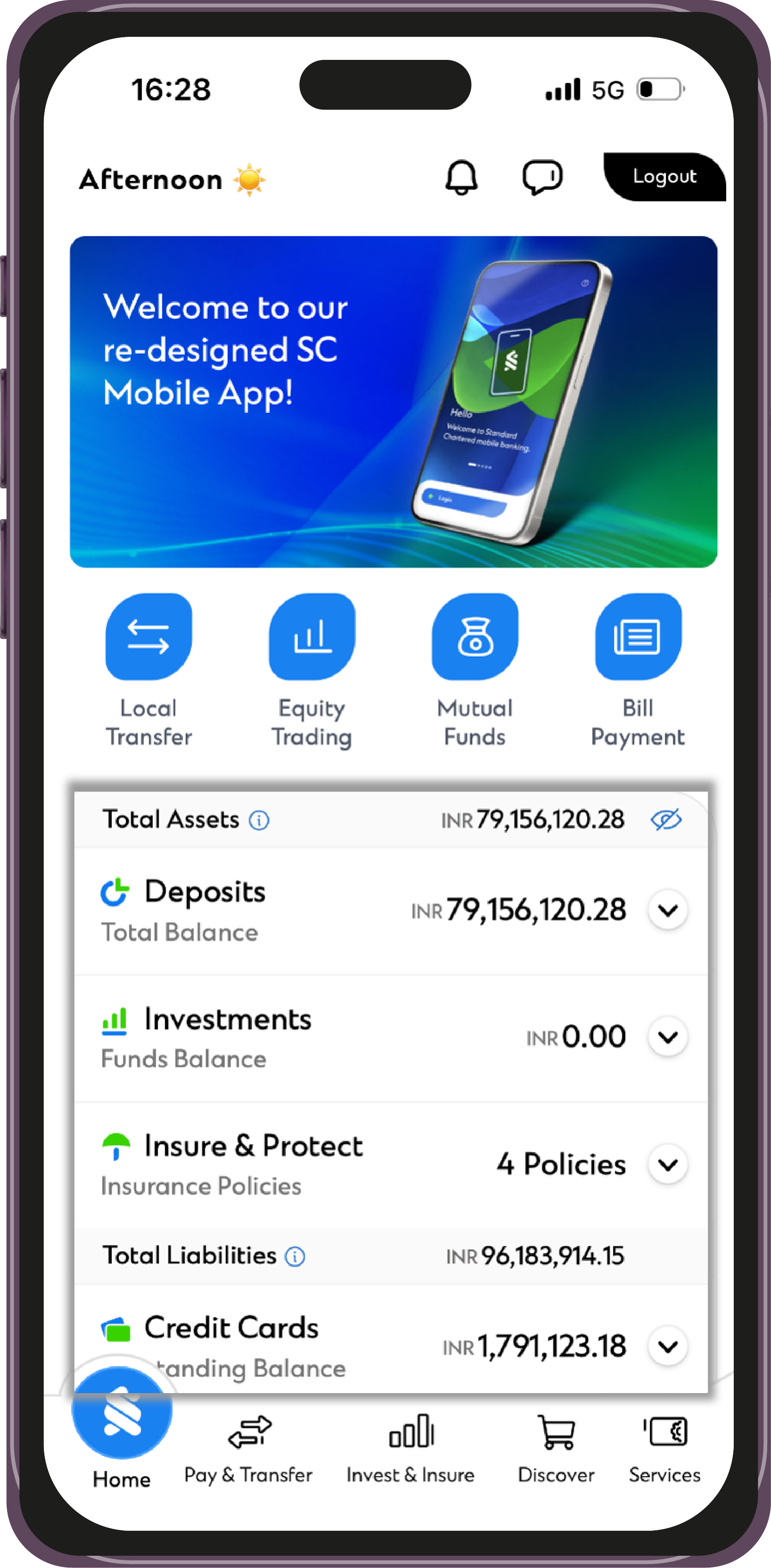
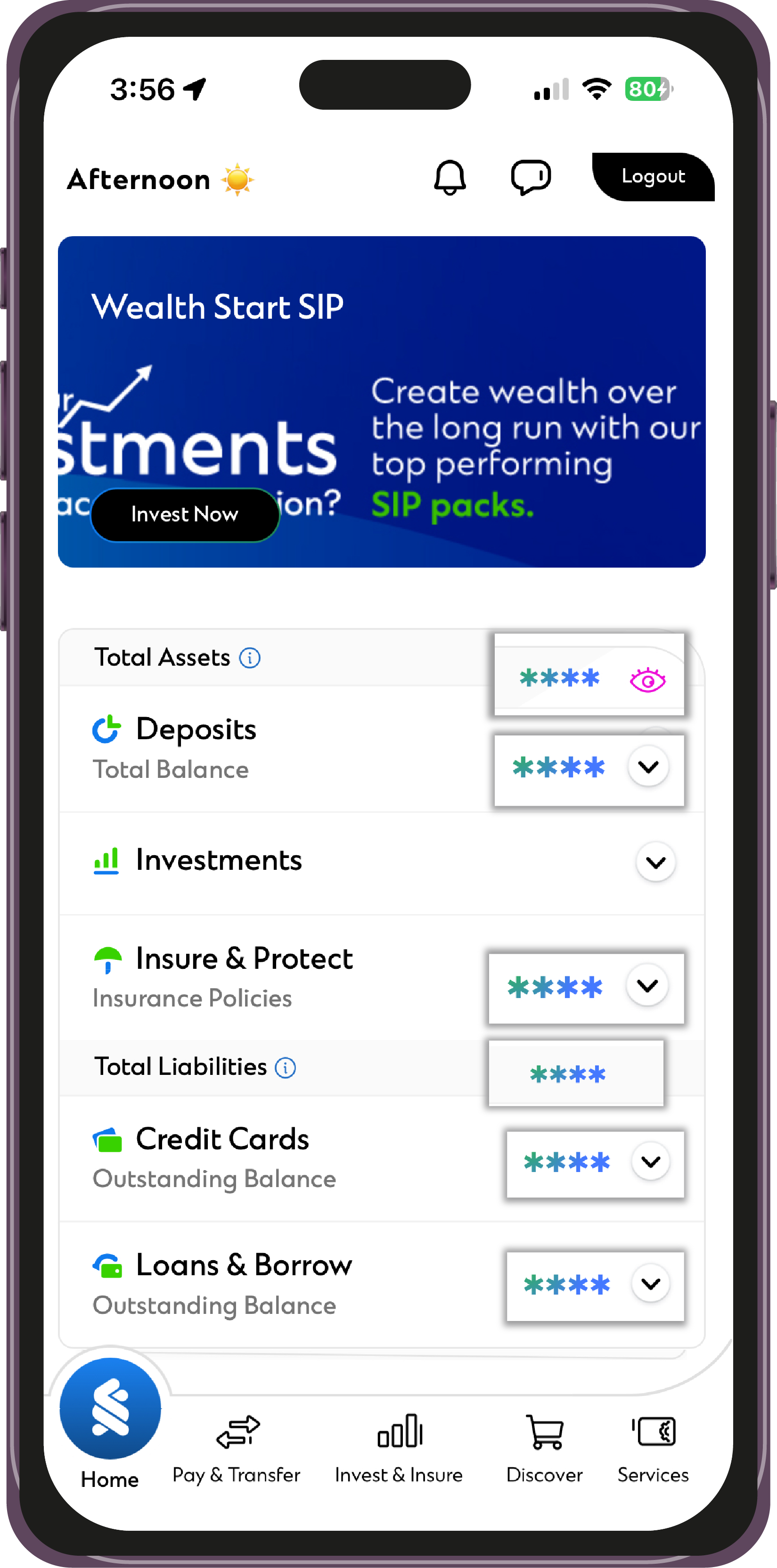
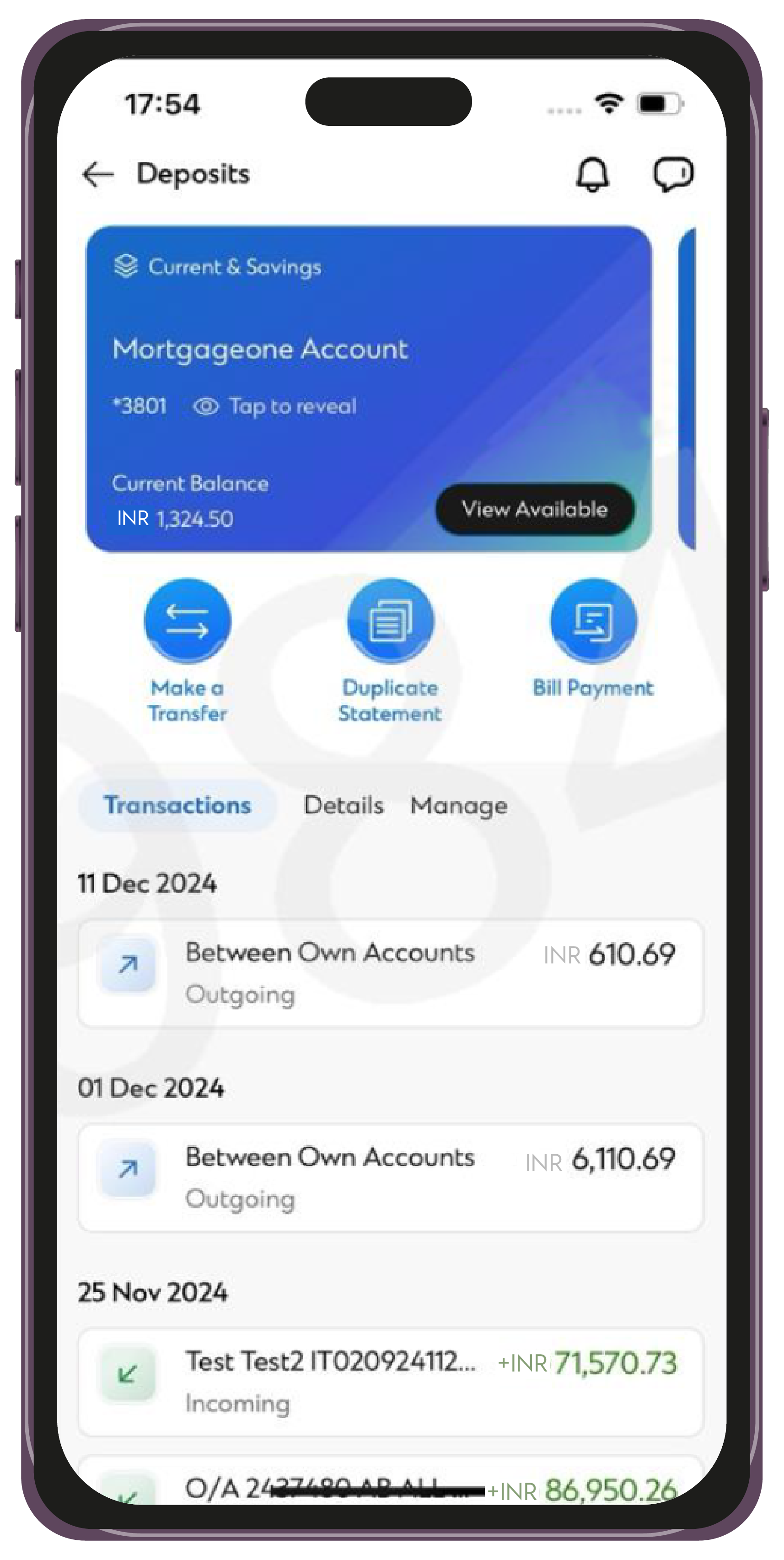
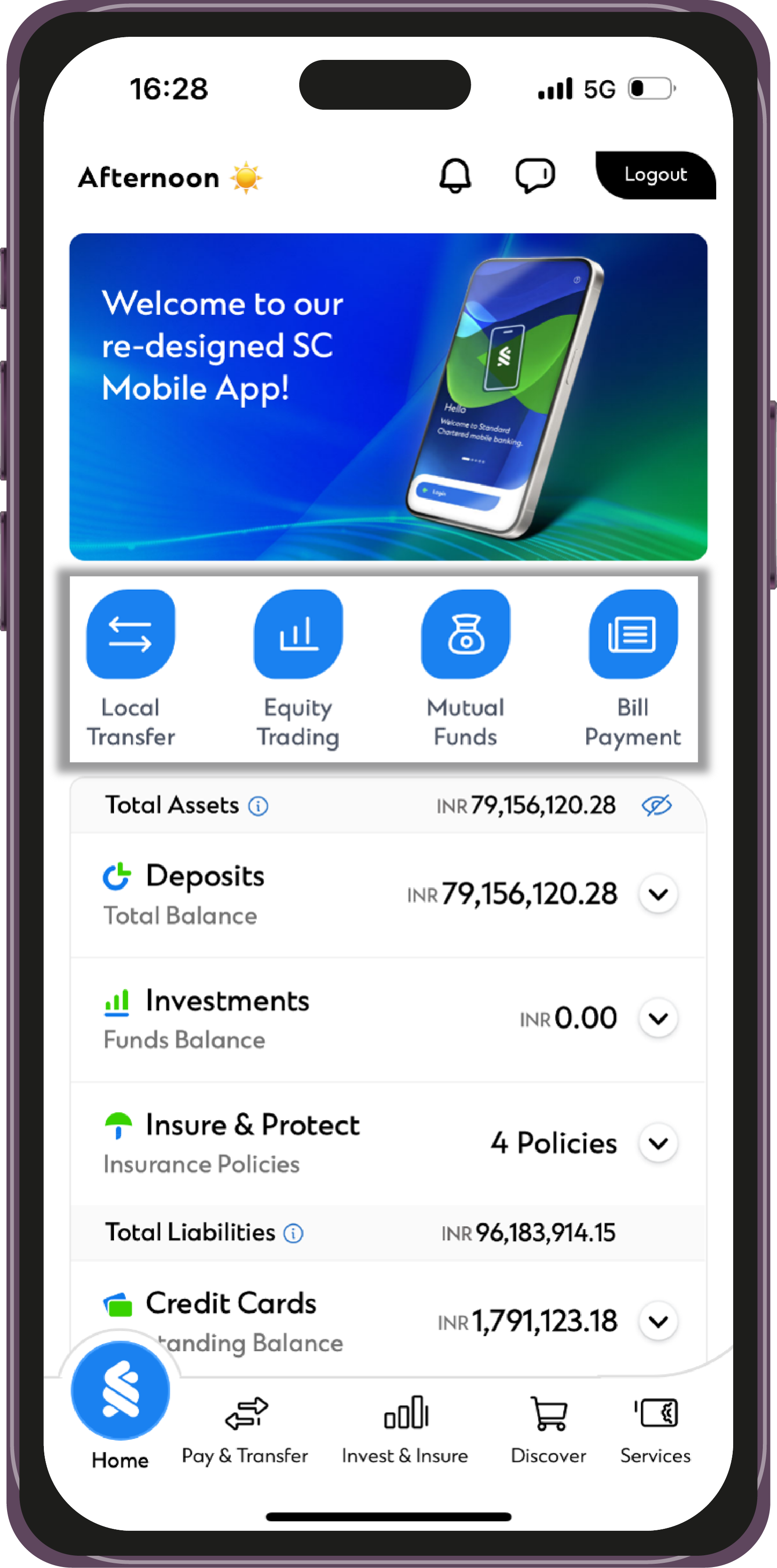
The product listing on the Home tab can be expanded to display your specific product details. You will be able to see the list of your subproduct categories under your product heading. On clicking on the sub-product, you will be taken to the product details page.

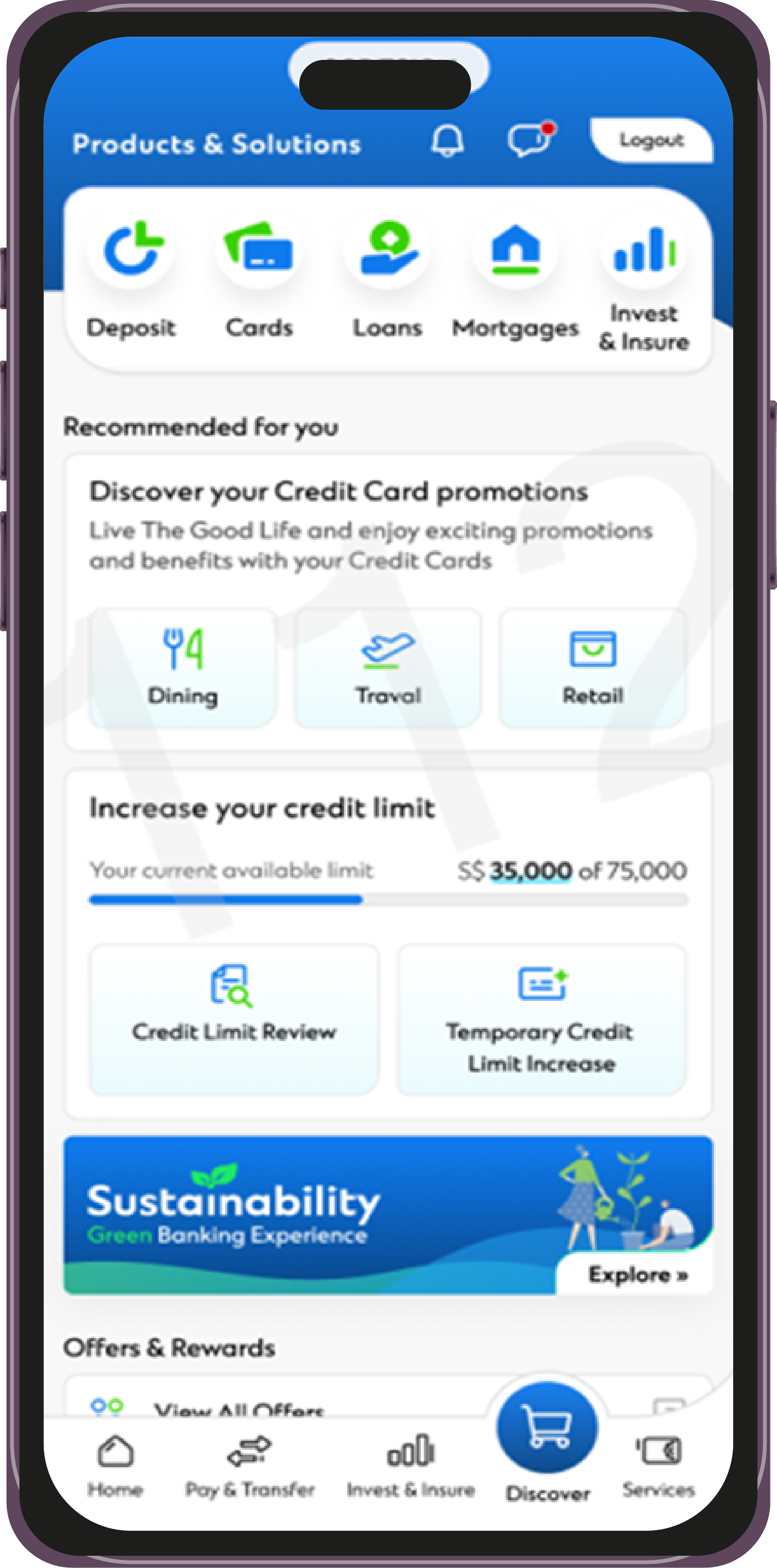
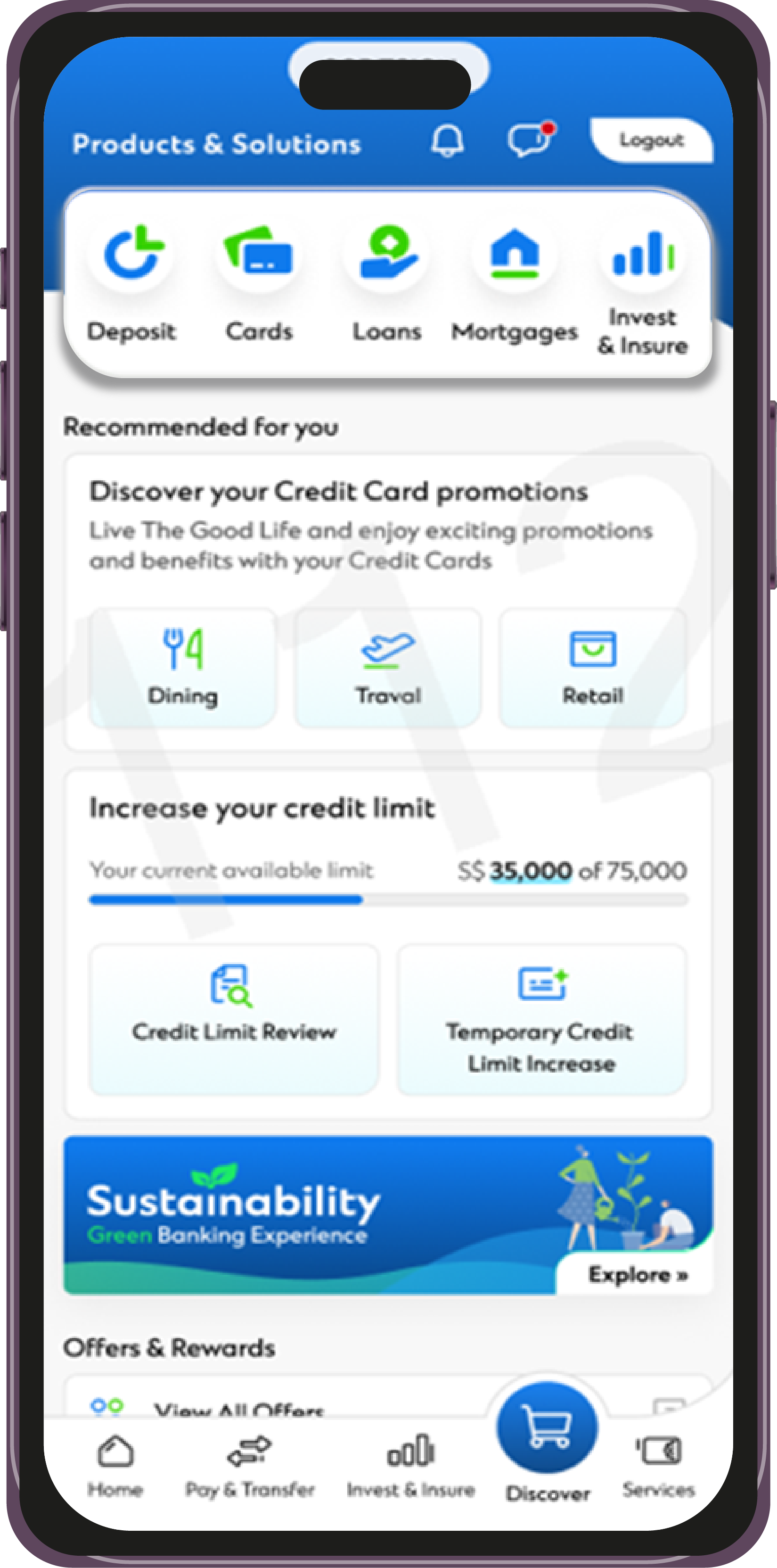
Discover tab is our dedicated space where you can find all our products and offers that have been specifically designed for you.

All the products and offers that our available under the discover tab can be availed by you.

Note : There will be different eligibility checks done for the same.

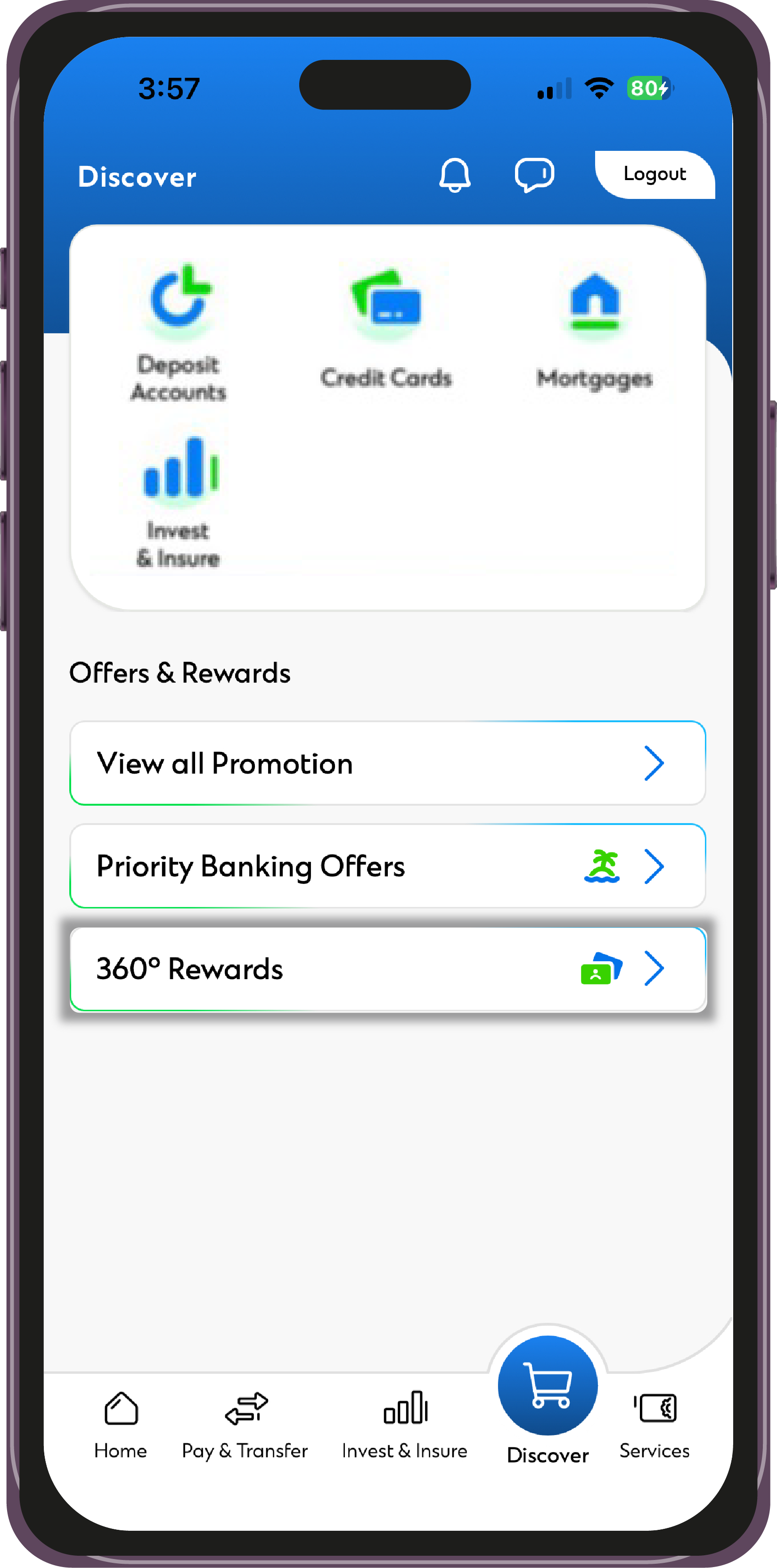
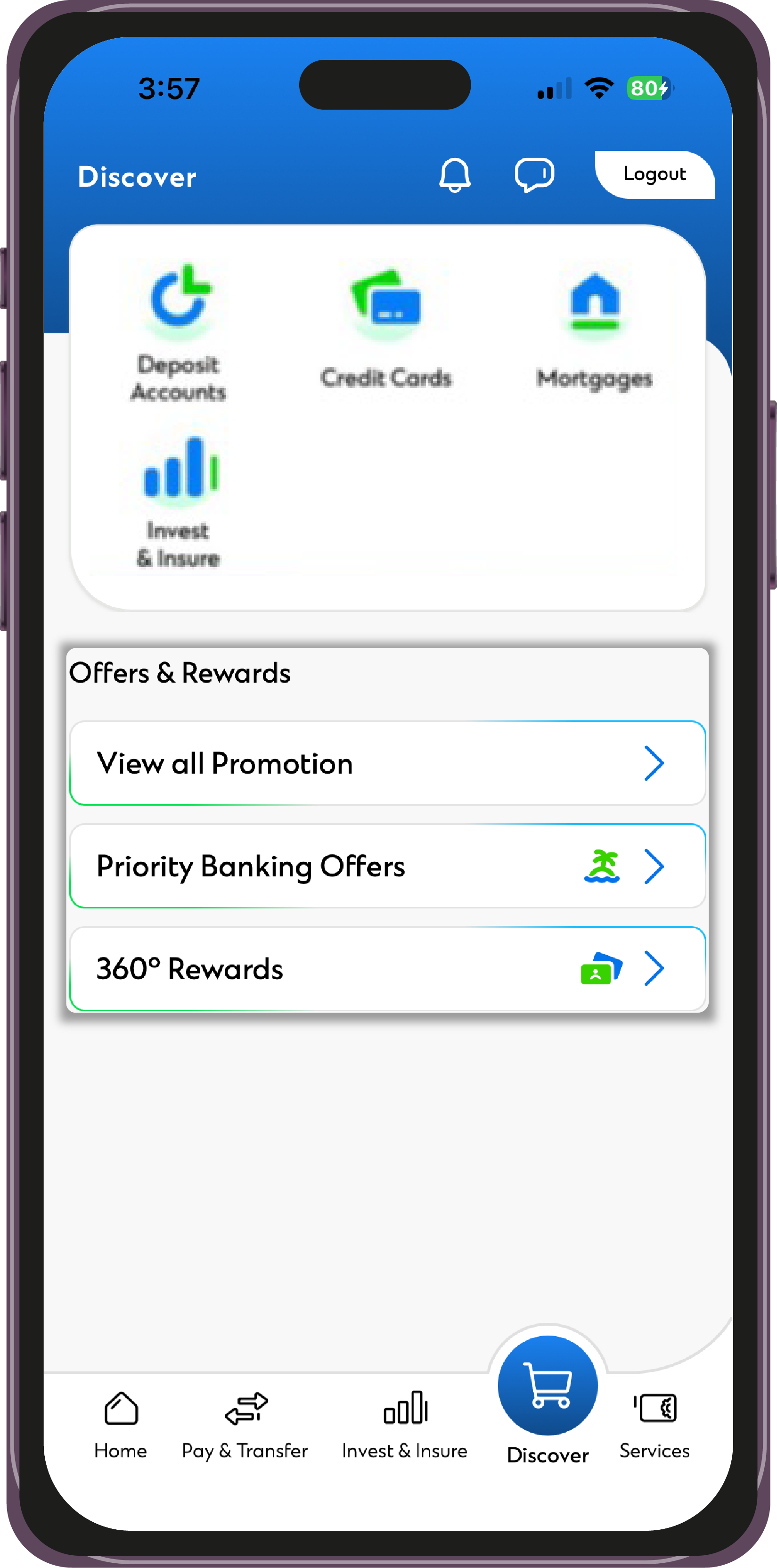
Step 1 : Login with your username and password


Step 2 : Click on the “Discover” tab in the bottom menu


Step 3 : Go to “Offers & Rewards” from the menu


Step 4 : Select “360 Rewards”

Step 1 : Login with your username and password


Step 2 : Click on the “Services” tab in the bottom menu
 

Step 3 : Select “Help & About” from the menu
 

Step 4 : Select “ATM & Branch Locations

Step 1 : Login with your username and password
 

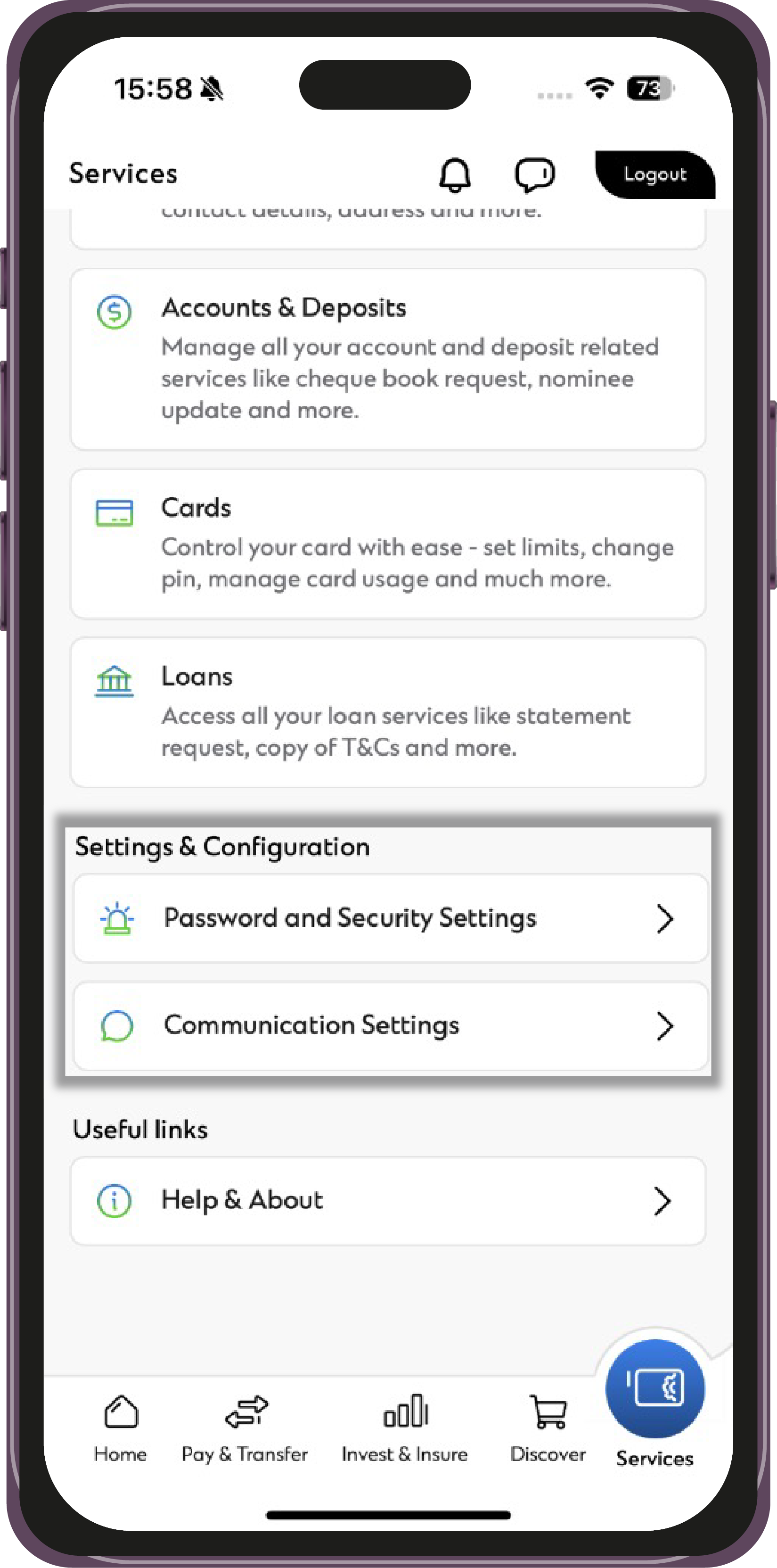
Step 2 : Click on the “Services” tab in the bottom menu
 

Step 3 : Select “Password and Security Settings” from the menu


Step 4 : Select “Change Password”


Step 5 : Enter the new password in the field given
 

Step 6 : Confirm the details provided on the screen and submit the request.

Follow the below steps to raise an unauthorised transaction:

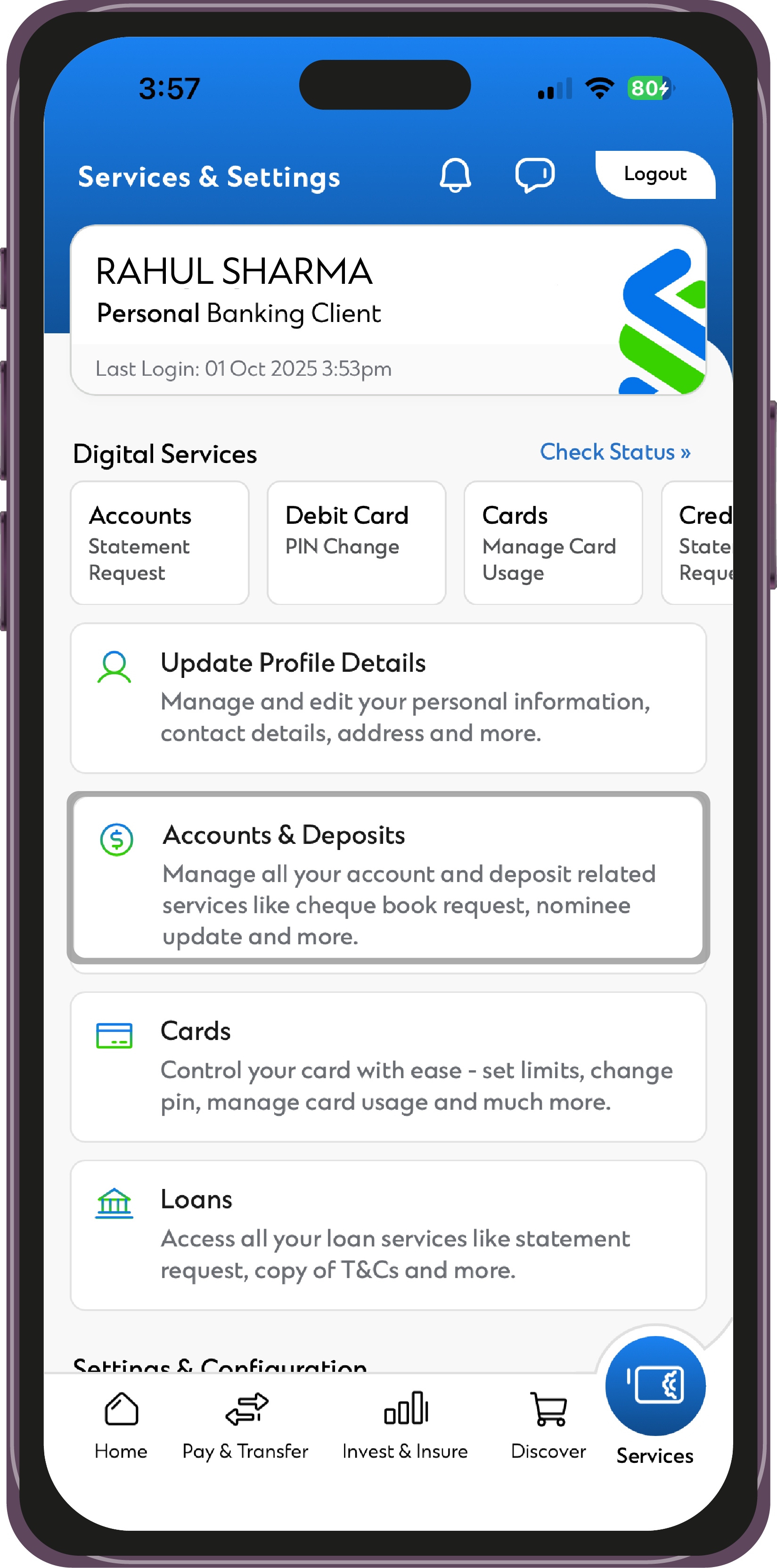
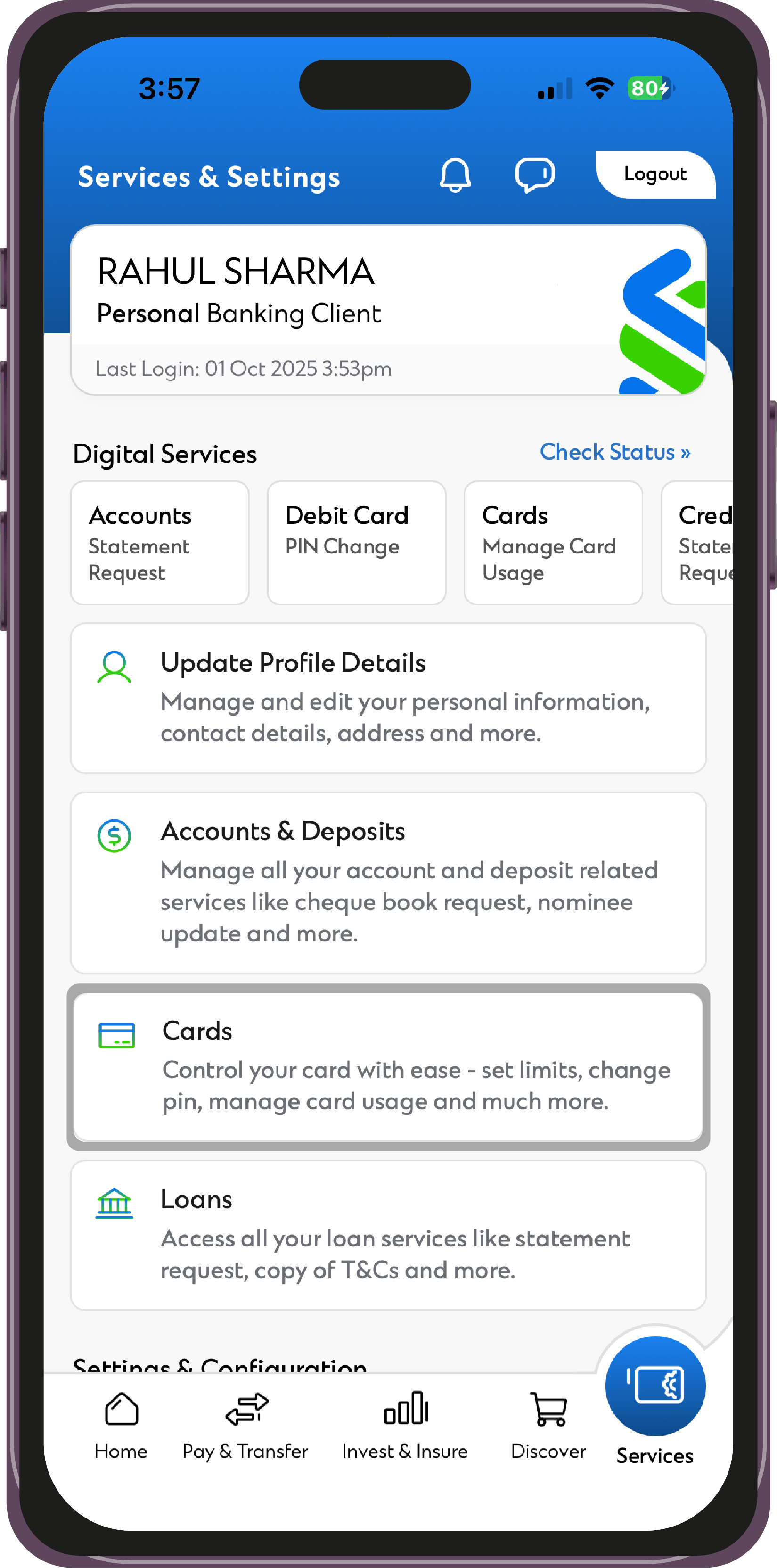
  1. Go to the ‘Services’ Tab
  2. Select ‘Account & Deposits’
  3. Select Account/Debit Card Transaction Dispute’
  4. Select the relevant details and submit

Bank with absolute confidence with our SC Mobile App.
Complete security in every transaction.